
Architect Your
Client's Success.
A command center for trainers. Build cohorts, schedule precisely, and deliver premium PDF assets instantly.
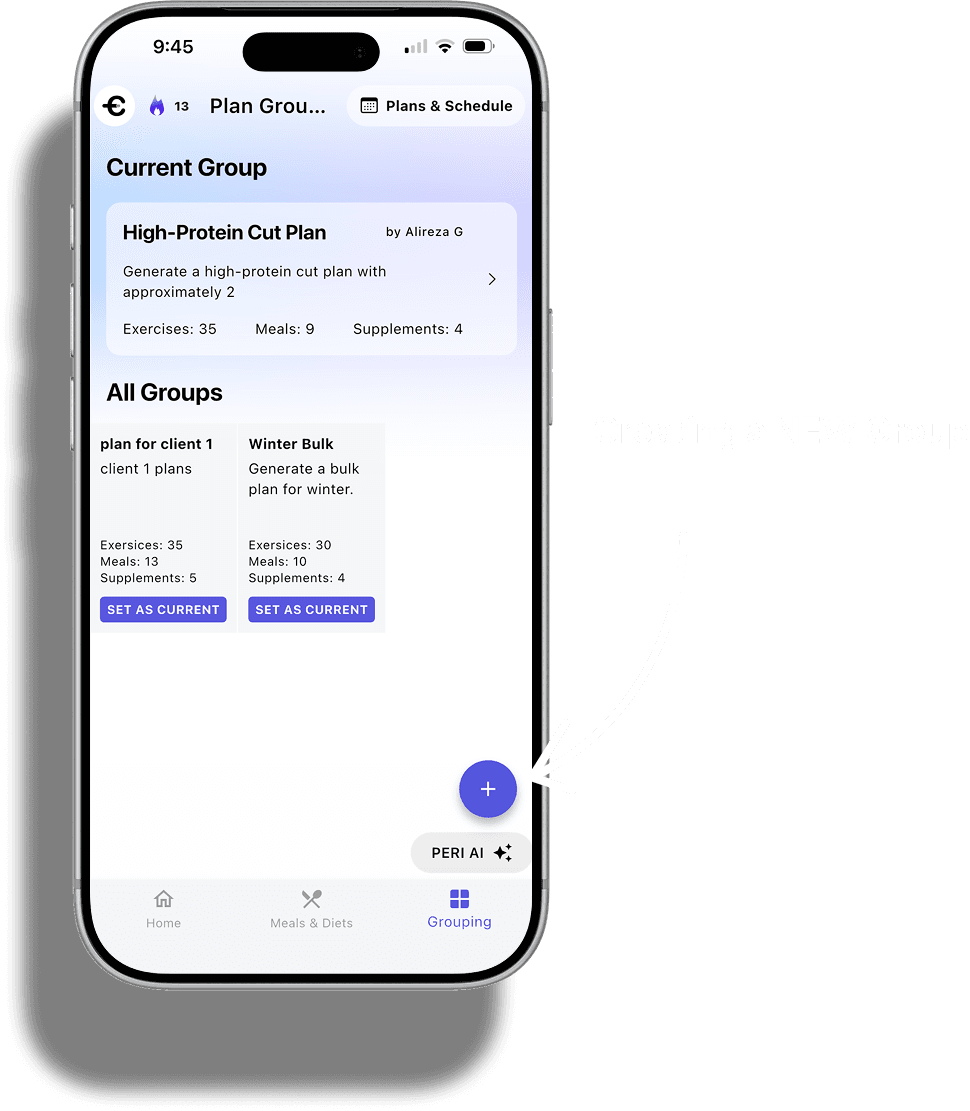
1. Start Fresh.
Initialize a new Grouping container. This is the home for your client's weekly programming.
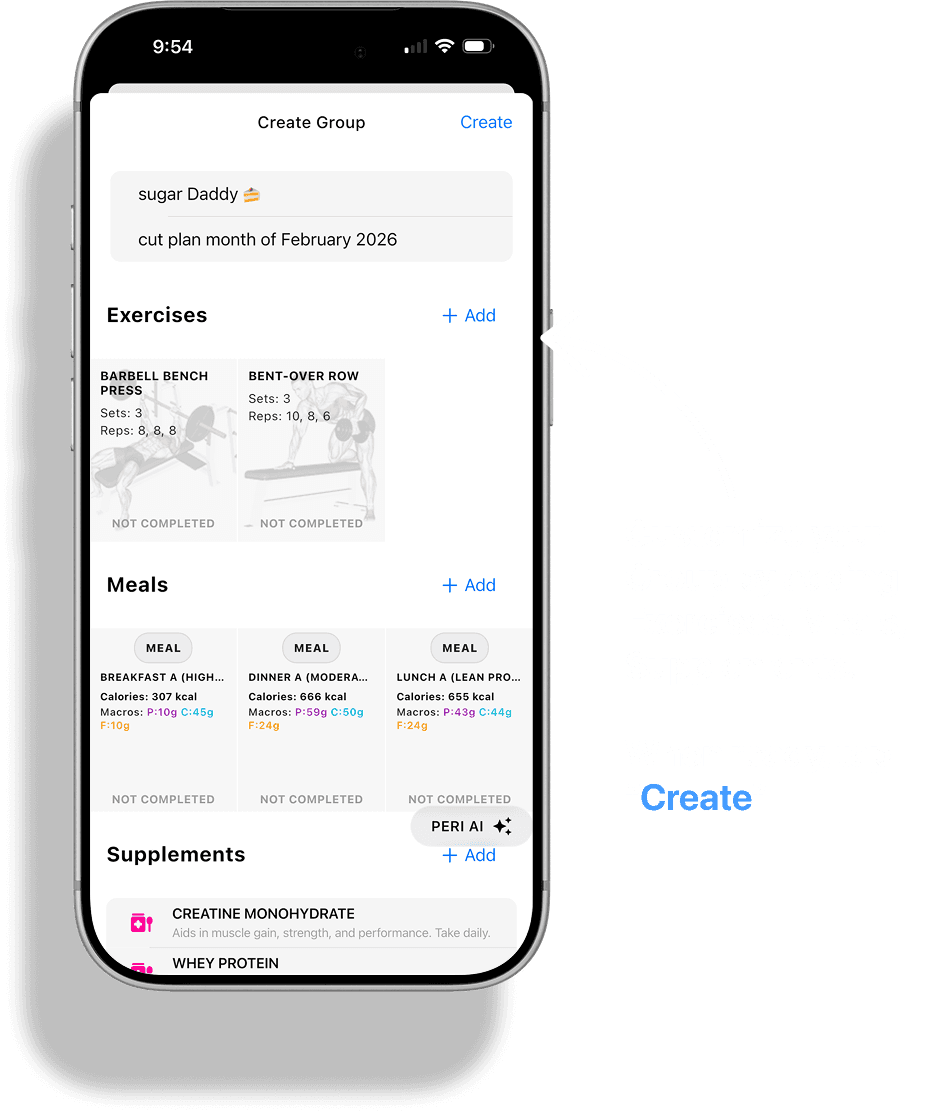
2. Design the Week.
Assign exercises, meals, and supplements to specific days using the intelligent Day Scheduler.
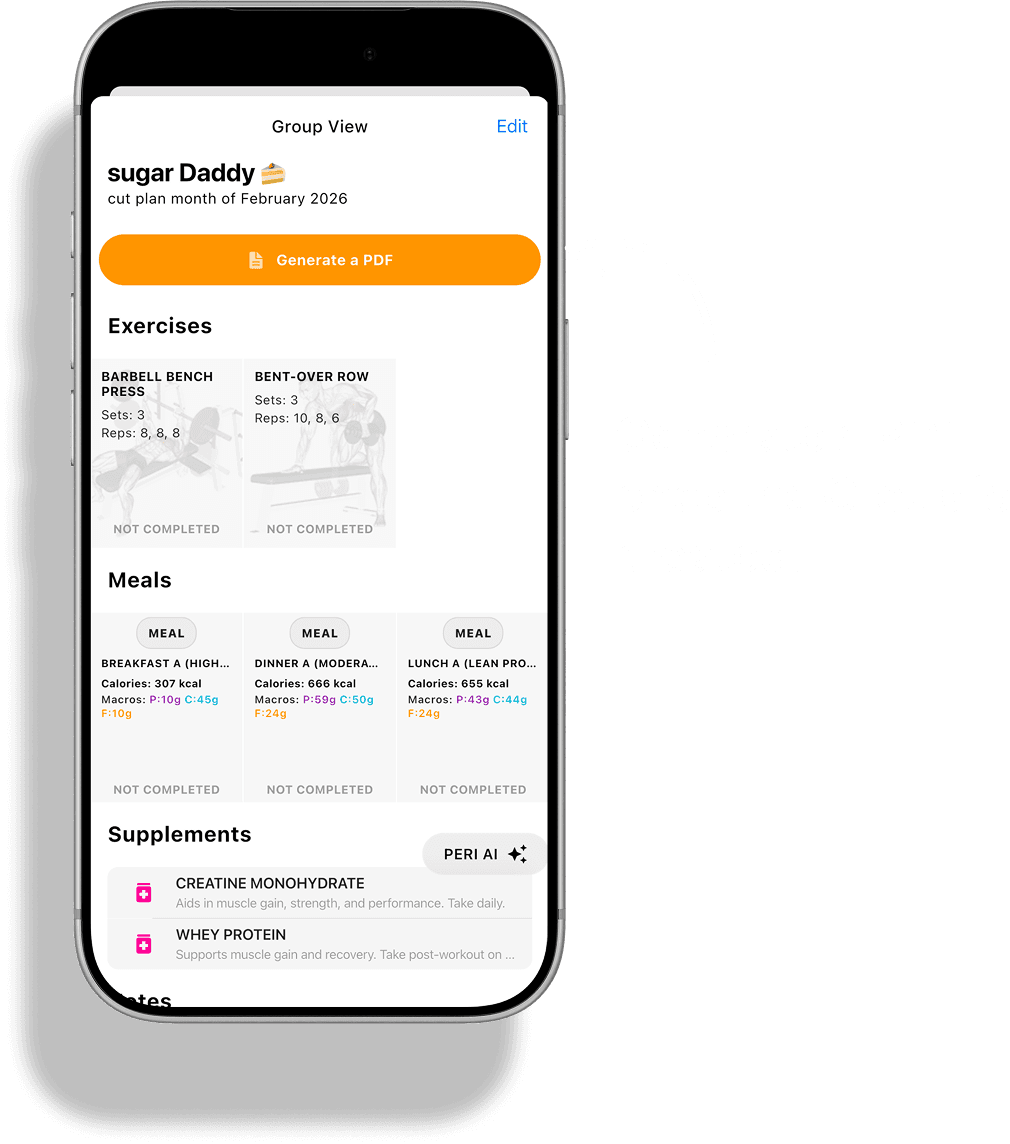
3. Generate Asset.
One tap transforms your digital plan into a professional, branded PDF handout.
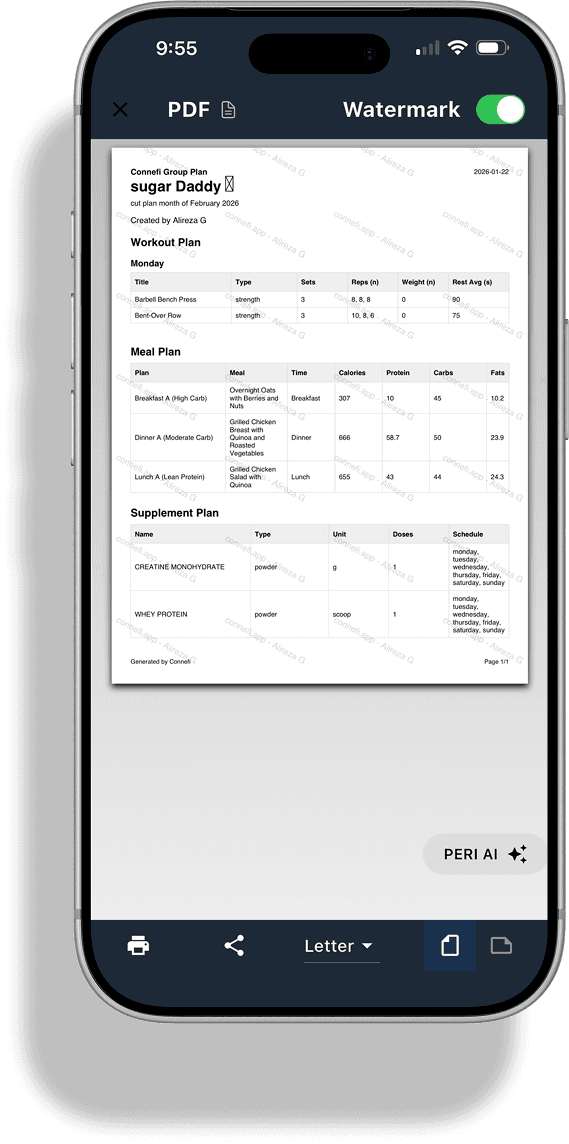
4. Review & Deploy.
Preview the output, check the watermark, and share directly to your client's device.
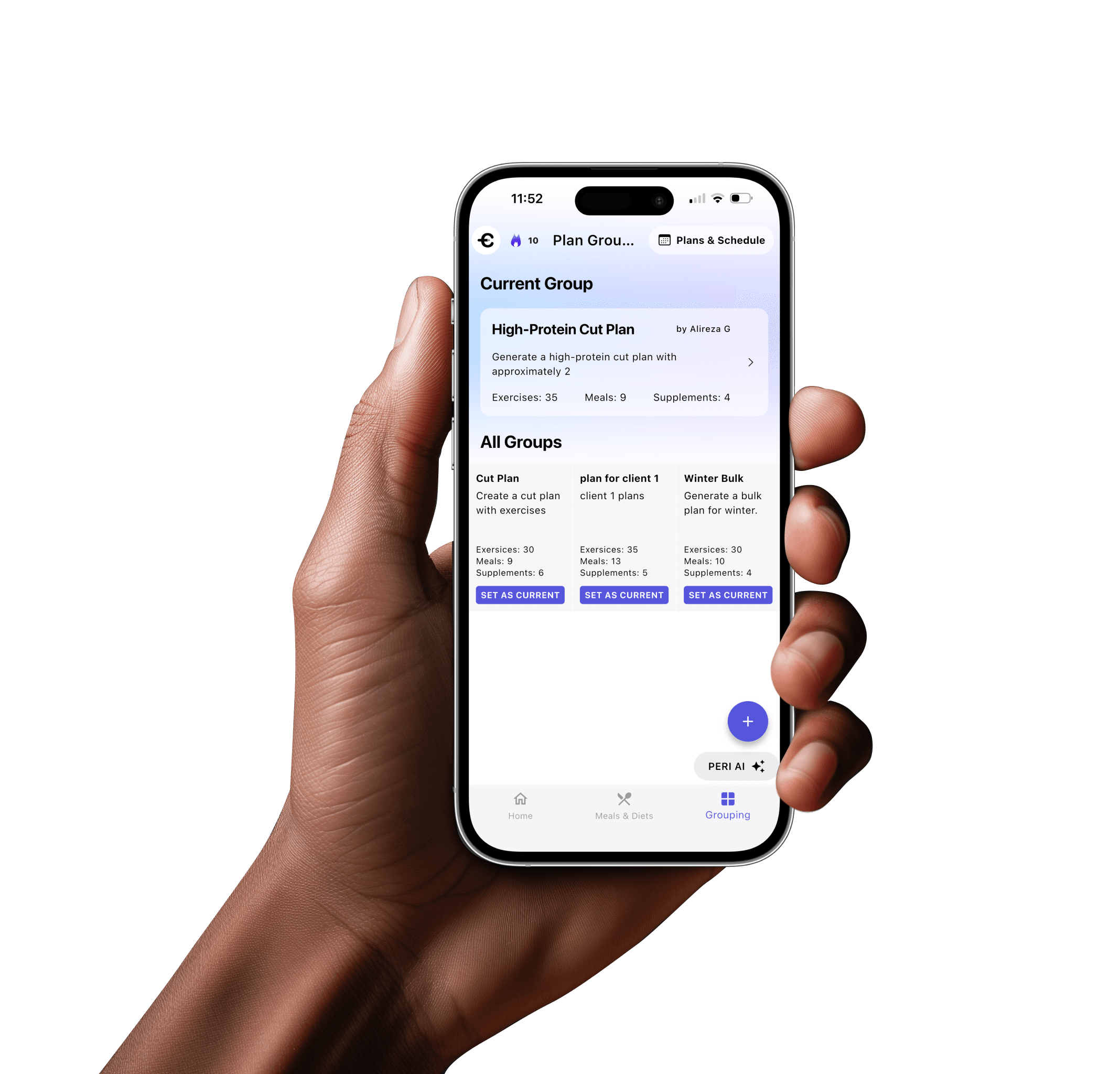
Grouping Logic
Groupings act as containers for weekly plans. You can assign a grouping to a single client (1:1) or a cohort of hundreds.
- Label by goal (e.g., Hypertrophy Block 1)
- Set start/end dates for periodization
- Clone groupings to scale your business
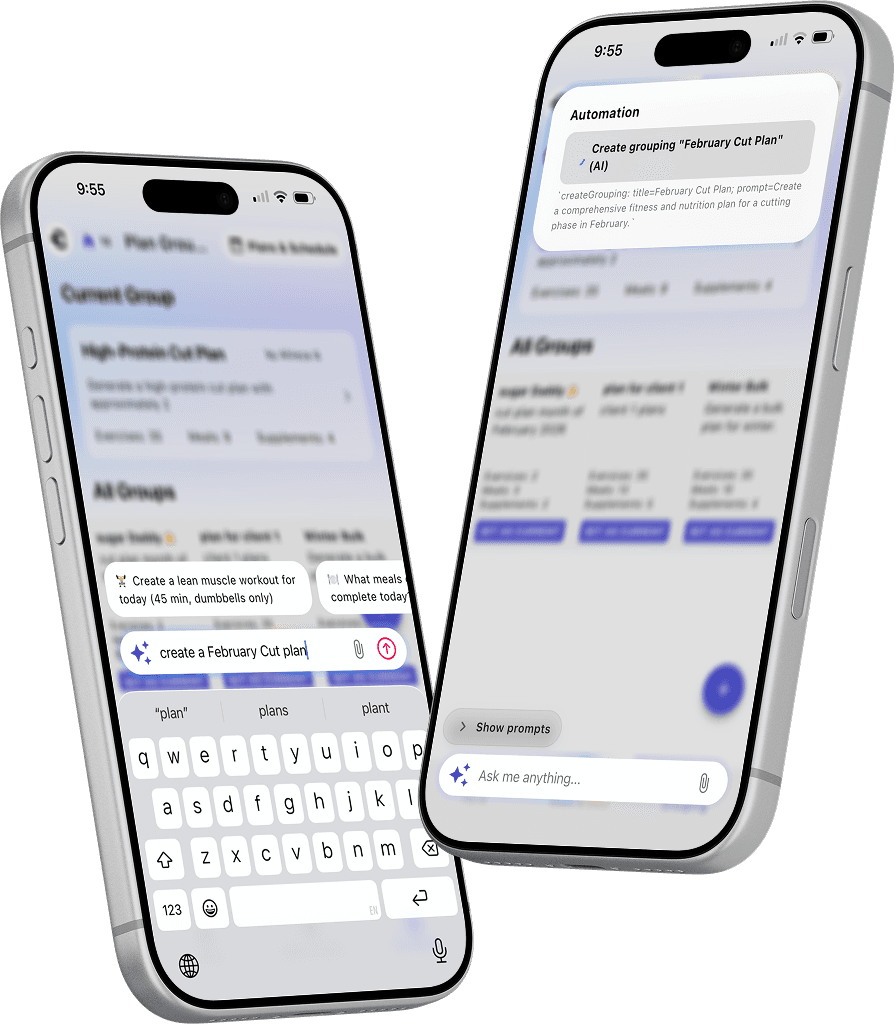
Meet Peri-AI.
Skip the manual data entry. Task our advanced AI to generate complete Groupings in seconds.
Full Weekly Plans
Generates comprehensive training splits, meal plans, and supplement protocols automatically.
Custom Parameters
You set the goals (hypertrophy, endurance, fat loss) — Peri handles the science.
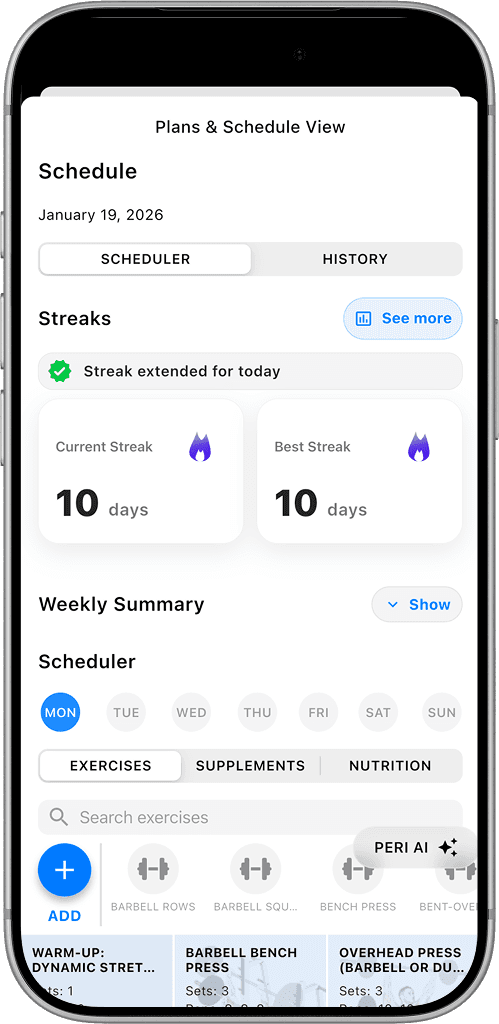
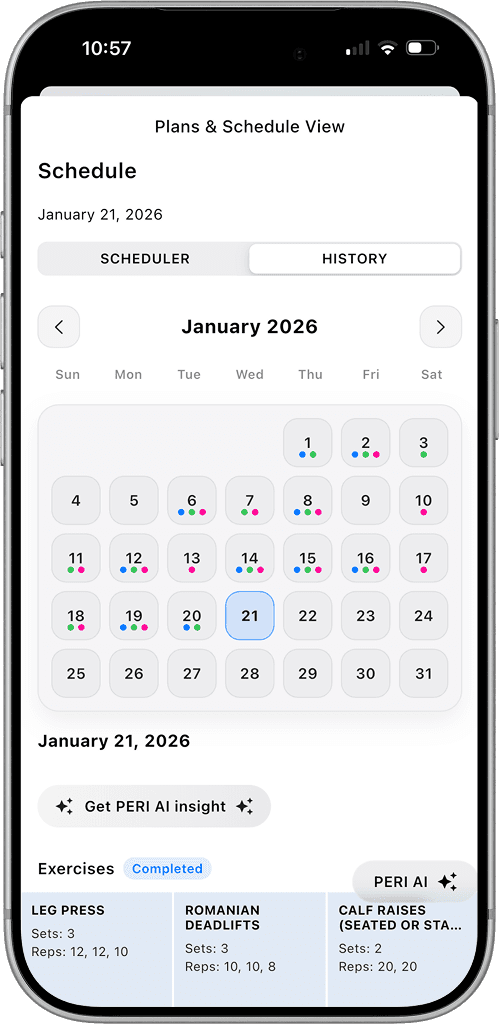
Day Scheduler
The core engine of Connefi. Map specific protocols to specific days of the week.
Exercises
Tap specific muscles or predefined workouts to assign them to Mon/Wed/Fri.
Nutrition
Set caloric targets or specific meal plans for training vs rest days.
Paper or Digital.
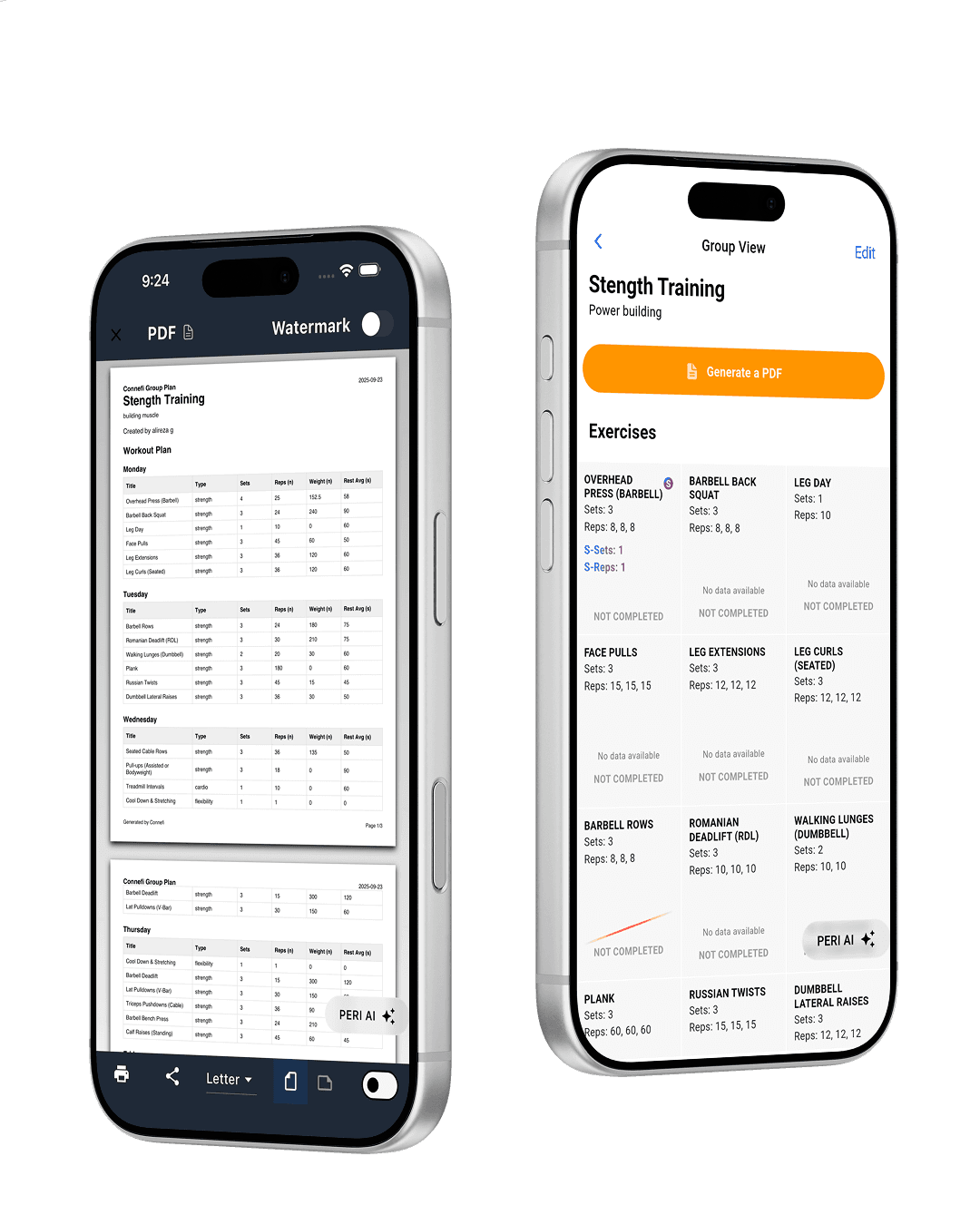
Some clients maximize results with a clipboard and a pen. We support that workflow natively.
Standard Operating Procedure
Client Acquisition
Onboard client to Connefi or create empty Grouping.
Assessment
Determine goals (Hypertrophy, Endurance) to label the Grouping.
Programming
Use the Day Scheduler to populate the week.
Distribution
Set as 'Current' for app users, or 'Generate PDF' for print users.
Frequently Asked Questions
Can I edit a PDF after generating it?
PDFs are static snapshots. To edit, modify the Grouping in the app and regenerate the PDF (it takes seconds).
Do my clients need the app?
Not if you use the PDF workflow. However, if they use the app, setting a grouping as 'Current' automatically populates their 'Today' feed.
Is there a limit to how many groupings I can create?
Premium trainers have unlimited grouping containers.